

Choosing a Display for Raspberry Pi: HDMI vs. MIPI DSI, Bridge Chips and Native Panels
This application note helps design engineers choose and integrate a display for Raspberry Pi boards and Compute Modules. It compares HDMI and MIPI DSI, explains the two ways to implement DSI (bridge chip or native MIPI panel), and lists the hardware and software work each path requires.
Part of the Embedded Displays knowledge hub.
1. Two Ways to Connect a Display
A Raspberry Pi can drive a display through two interfaces.
- HDMI. This is plug and play. The display identifies itself to the Pi, and touch usually runs over USB. Orient Display offers Pi-ready HDMI/USB displays in 4.3″, 5″, 7″ (1024×600) and 10.1″ (1280×800). HDMI is the fastest route to a working prototype and suits low and medium volumes.
- MIPI DSI. The display connects to the Pi’s DSI connector with a flat flexible cable (FPC). The same cable can carry video, touch data and logic power. At volume, DSI gives lower cost and a thinner, more integrated design. It also needs more engineering: hardware design, a device-tree overlay and panel bring-up.
The rest of this note covers MIPI DSI.
2. DSI Connector Basics
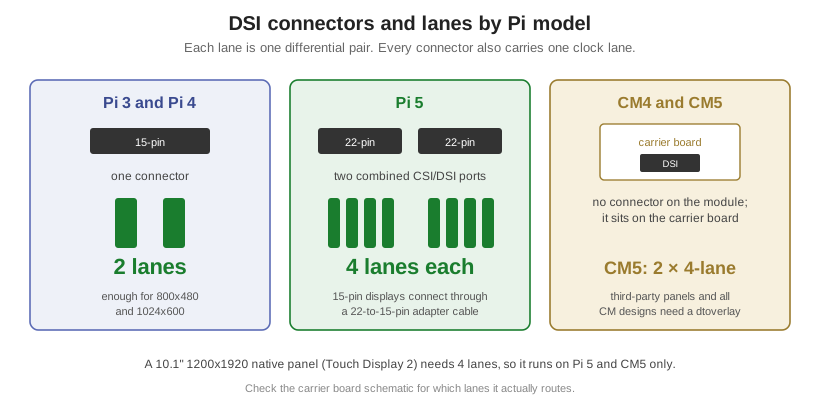
Connectors and lanes by model
- Raspberry Pi 3 and Pi 4: one 15-pin connector, 2 data lanes.
- Raspberry Pi 5: two 22-pin connectors. Each is a combined CSI/DSI port with 4 lanes. A 15-pin display connects through a 22-to-15-pin adapter cable.
- Compute Module 4 and Compute Module 5: the module has no display connector of its own. The DSI connector sits on the carrier board. CM5 provides two 4-lane MIPI interfaces.
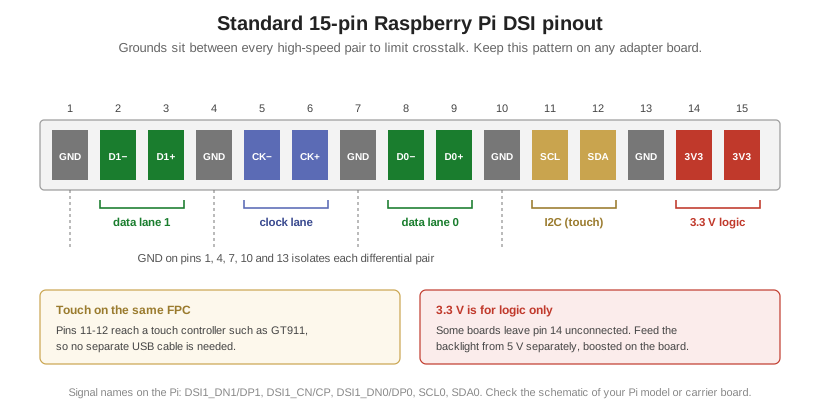
Standard 15-pin DSI pinout
| Pin | Signal | Type | Description |
|---|---|---|---|
| 1 | GND | Ground | Signal and power return; shielding. |
| 2 | DSI1_DN1 | Data lane 1 (-) | MIPI data lane 1, negative. |
| 3 | DSI1_DP1 | Data lane 1 (+) | MIPI data lane 1, positive. |
| 4 | GND | Ground | Isolates differential pairs; reduces EMI. |
| 5 | DSI1_CN | Clock (-) | MIPI clock lane, negative. |
| 6 | DSI1_CP | Clock (+) | MIPI clock lane, positive. |
| 7 | GND | Ground | Isolates differential pairs; reduces EMI. |
| 8 | DSI1_DN0 | Data lane 0 (-) | MIPI data lane 0, negative. |
| 9 | DSI1_DP0 | Data lane 0 (+) | MIPI data lane 0, positive. |
| 10 | GND | Ground | Isolates differential pairs. |
| 11 | SCL0 | I2C clock | I2C clock to the display board: touch controller (for example GT911) and other on-board controllers. |
| 12 | SDA0 | I2C data | I2C data to the display board: touch controller (for example GT911) and other on-board controllers. |
| 13 | GND | Ground | Isolation and signal ground. |
| 14 | 3V3 | 3.3 V supply | 3.3 V logic supply from the Pi to the display board or bridge chip. See note. |
| 15 | 3V3 | 3.3 V supply | 3.3 V logic supply from the Pi to the display board or bridge chip. |
Note on pins 14 and 15: some boards leave pin 14 unconnected. Check the schematic of the specific Pi model or carrier board before you rely on both pins.
Design notes
- Bandwidth. The 15-pin interface carries one clock lane and two data lanes. Two lanes are enough for 800×480 and 1024×600 panels.
- EMI. The pins follow the order GND, data 1, GND, clock, GND, data 0, GND. This interleaving is standard practice in FPC design. It limits crosstalk between the high-speed differential pairs. Keep the same pattern on any adapter or carrier board.
- Touch over I2C. Pins 11 and 12 carry touch data and let the Pi talk to a controller on the display board. One FPC can therefore carry both display and touch, with no separate USB cable.
- No EDID. Unlike HDMI, DSI has no EDID. On standard Pi boards, the firmware auto-detects Raspberry Pi’s own DSI displays, whose on-board microcontroller at I2C address 0x45 reports a panel ID. Third-party panels, and all Compute Module designs, need a dtoverlay line in config.txt.
- Power. The 3.3 V rail supplies logic: the bridge chip and the touch controller. It cannot drive the LED backlight of a 7″ or larger panel. Take 5 V separately, from the Pi’s 5 V header pins or an independent supply, and boost it for the backlight.
3. Option A: Bridge Chip
Why use a bridge
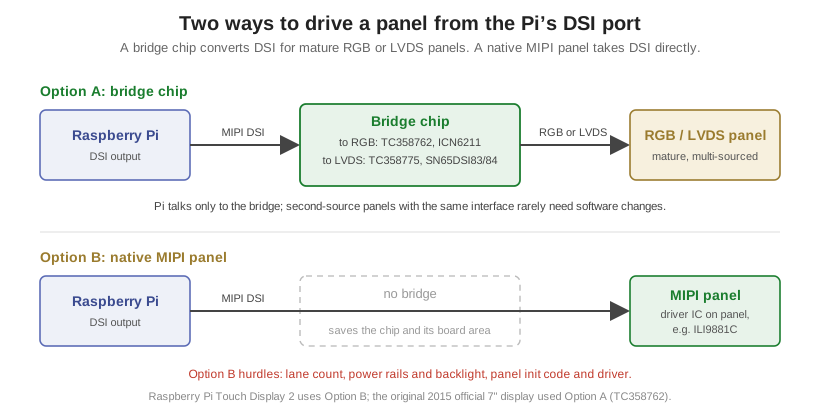
Small and mid-size RGB and LVDS panels have a long history in the supply chain. They ship in high volume, stay in production for years and have many second sources. Native MIPI panels of the same size are less common and often cost more. A bridge chip lets the Pi’s DSI output drive these mature panels. The bridge receives the DSI stream and converts it to the panel’s interface.
The bridge also isolates the Pi from the panel. The Pi talks only to the bridge. As long as the DSI link to the bridge is stable, the panel side is a well-understood parallel or LVDS interface with tolerant timing. Swapping to a second-source panel with the same interface rarely needs software changes beyond timing values.
DSI to parallel RGB: Toshiba TC358762
For panels with a parallel RGB (DPI) interface, use a DSI-to-RGB bridge such as the Toshiba TC358762. The original 2015 official Raspberry Pi 7″ display uses this chip. The Pi kernel supports it through the vc4-kms-dsi-7inch overlay (compatible string “toshiba,tc358762”). This is mature support with about ten years of field use, and new designs can reuse it.
- Link: dual-lane DSI receiver, up to 800 Mbps per lane. The current Raspberry Pi kernel driver runs it on one lane only, which gives about 800 Mbps.
- Resolution: Toshiba’s launch announcement rated the chip up to XGA (1024×768) at 60 fps with both lanes.
- Fit: it suits 800×480 and similar smaller RGB panels, as on the original official 7″ display. A 1024×600 panel at 60 fps and 24 bpp needs about 1.2 Gbps, so it would need the driver changed to two-lane mode. A 1280×800 panel at 60 fps does not fit.
The related Toshiba TC358778XBG works in the opposite direction (RGB to MIPI DSI, up to WUXGA). For DSI to RGB, the TC358762 is the right Toshiba part.
DSI to parallel RGB for larger panels: Chipone ICN6211
For RGB panels above 800×480, the Chipone ICN6211 is a common DSI-to-RGB bridge. It accepts 1 to 4 DSI lanes at up to 1 Gbps per lane, and its RGB pixel clock runs from 2 MHz to 154 MHz. Mainline Linux supports it with the chipone-icn6211 bridge driver. As with the LVDS bridges below, confirm that the module supplier provides a tested Raspberry Pi overlay.
The ICN6211 makes a single RGB carrier-board design practical across three sizes: 5″ 800×480, 7″ 1024×600 and 10.1″ 1024×600. 10.1″ panels at 1024×600 with a 50-pin RGB interface are widely available. For 10.1″ at 1280×800, use LVDS, as described next.
DSI to LVDS: TC358775 or SN65DSI83/84
10.1″ 1280×800 industrial panels are almost always LVDS. 7″ 1024×600 panels come in both 50-pin TTL (RGB) and LVDS versions. For these panels, use a DSI-to-LVDS bridge such as the Toshiba TC358775 or the TI SN65DSI83/84. Overlay and driver integration for these bridges on the Pi is provided by the display module supplier. Confirm that this software comes with the module before you commit to a design.
Where to place the bridge
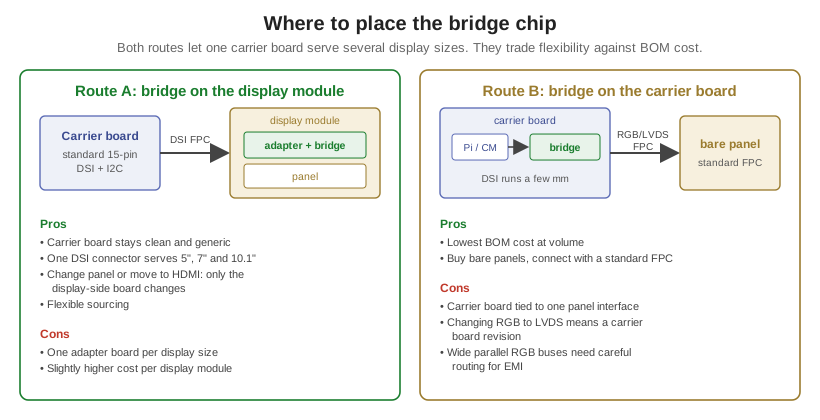
Route A: bridge on the display module. The carrier board exposes one standard 15-pin DSI connector, with I2C for touch. Each display size gets a small adapter board on the back of the panel that holds the bridge.
- Pros: the carrier board stays clean and generic. One DSI connector serves 5″, 7″ and 10.1″ products. If a product later moves to HDMI or another panel, only the display-side board changes. Sourcing stays flexible.
- Cons: one adapter board per size, and a slightly higher cost per display module.
Route B: bridge on the carrier board. The DSI signal runs a few millimeters on the carrier board into the bridge. The carrier board then exposes a panel connector (for example an RGB or LVDS FPC connector with touch I2C and backlight power).
- Pros: lowest BOM cost at volume. You can buy bare panels and connect them with a standard FPC.
- Cons: the carrier board is tied to one panel interface (RGB or LVDS). A change of interface means a carrier board revision. Wide parallel RGB buses on the carrier also need careful routing for EMI.
Both routes let one carrier board design serve several display sizes, which simplifies stocking and SMT for volume projects on custom carrier boards.
4. Option B: Native MIPI Panel
How Touch Display 2 removed the bridge
The original official display needed a bridge chip. The Raspberry Pi Touch Display 2 does not. It uses native MIPI DSI panels, and the DSI signal goes straight to the panel’s driver IC.
- 5″ and 7″: 720×1280 portrait, Ilitek ILI9881C driver IC, Goodix GT911 touch, no bridge.
- 10.1″: 1200×1920 portrait, Ilitek ILI79600A driver IC, 4 lanes, Pi 5 and CM5 only.
If a native panel matches the Pi’s DSI signals, the bridge can go. This saves the bridge chip and its board area. It also adds three hurdles. Clear all three before you commit to samples, or the panel will not light up.
Hurdle 1: lane count
Pi 3 and Pi 4 provide 2 lanes. Pi 5 and CM5 provide 4. Native 10.1″ panels at 1200×1920 or 1200×1280 usually require 4-lane input for their bandwidth. Such a panel can connect directly to a Pi 5 or CM5. It cannot work on a 2-lane Pi 3 or Pi 4, because two data pairs are missing. In that case, use a bridge or a different panel. Native 5″ and 7″ panels at lower resolution usually run on 2 lanes.
Hurdle 2: power rails and backlight
The DSI connector supplies only 3.3 V. Phone- and tablet-class panels often need other rails: 1.8 V IOVCC, 2.8 V or 3.3 V VCI, and sometimes bias rails such as AVDD, VGH and VGL. Native panels also usually lack a backlight constant-current driver. The adapter or carrier board must generate these rails and drive the backlight. Section 5 covers the circuits.
Hurdle 3: panel init code and driver
This is where most projects stall. Even with every signal wired correctly, the screen stays dark until the Pi sends the panel’s initialization sequence. The system must know the driver IC and its register settings. Section 6 covers the software work.
Recommended driver ICs
The lowest-risk path is to match the panels Raspberry Pi already supports. Ask the panel supplier for a panel built on one of these driver ICs.
- Ilitek ILI9881C for 5″ and 7″ (720×1280). It uses 2 lanes, so it works on all Pi models with DSI, from Pi 3 to Pi 5 and CM5.
- Ilitek ILI79600A for 10.1″ (1200×1920). It uses 4 lanes, so it works on Pi 5 and CM5 only. Its driver is in the Raspberry Pi kernel, built as a module for Pi 4 and Pi 5 class boards, and is not in mainline Linux.
Even with these ICs, a non-official panel has its own init code and timing. The official overlays are a reference, not a drop-in. Other controllers need more work. The Novatek NT35596, for example, appears in Linux only in a driver for one specific 5.5″ 1080×1920 phone panel (panel-asus-z00t-tm5p5-n35596), and Raspberry Pi kernel builds do not enable it. Any other NT35596 panel needs its own driver or init sequence.
Also weigh lifecycle. Phone-class native panels often go end of life in one to two years. Industrial RGB and LVDS panels usually stay available much longer.
5. Hardware Essentials on the Adapter or Carrier Board
A native MIPI design needs a small adapter board between the Pi’s DSI connector and the panel FPC, or the same circuits on a custom carrier board. A bridge-based module needs some of the same circuits. The adapter cost is modest compared with a bridge, but the design must be right.
- Pin mapping and impedance. Route the clock and data pairs from the 15-pin or 22-pin connector to the panel’s FPC pins. Control impedance at 50 Ω single-ended and 100 Ω differential. Keep pairs length-matched and keep the ground interleaving.
- Logic power. Generate 1.8 V IOVCC from the 3.3 V rail with a low-cost LDO. Provide VCI (2.8 V or 3.3 V) as the panel requires.
- Backlight boost. Panel backlights are series LED strings that typically need 15 V to 25 V. Place a boost constant-current LED driver, such as the SY7201 or AP3012, and feed it from 5 V. Check the overvoltage protection against the string voltage. The AP3012 OVP is about 29 V, which leaves little headroom near 24 V strings.
- Dimming. Connect the driver’s EN/PWM pin to a hardware PWM pin, such as GPIO18. Software then sets brightness through /sys/class/backlight. On Pi 5 and CM5, where the RP1 I/O controller handles GPIO, GPIO18 is PWM0 channel 2 (ALT3), not channel 0. Configure the overlay to match.
- Level shifting for RESET. Pi and CM GPIO run at 3.3 V. If the panel’s RESET pin uses 1.8 V logic, add a level shifter such as the TXS0102 (suitable for 1.8 V to 3.3 V), or a simple RC delay circuit. This protects the panel IC from overvoltage and keeps the power-up sequence correct.
6. Software: Overlays and Panel Bring-up
The Pi selects a DSI display through a device-tree overlay in /boot/firmware/config.txt. Examples:
- dtoverlay=vc4-kms-dsi-7inch for the original 7″ display (TC358762 bridge).
- dtoverlay=vc4-kms-dsi-ili9881-5inch and dtoverlay=vc4-kms-dsi-ili9881-7inch for Touch Display 2, 5″ and 7″.
- dtoverlay=vc4-kms-dsi-ili79600-10-1inch for Touch Display 2, 10.1″.
These official overlays cover only the official panels. Any other panel needs its own overlay or driver with its own init code and timing, even if it uses the same driver IC.
For a native MIPI panel, the Pi sends the init sequence at boot as DSI low-power (LP) command packets. To bring up a non-official panel:
- Require the panel supplier to provide the complete initialization code and timing parameters (HBP, HFP, VBP, VFP, pixel clock) as part of the sample agreement. Code from a Linux or Android reference design is ideal.
- Implement the sequence in a device-tree overlay or a kernel panel driver. Adapting an existing driver for the same controller IC is usually the fastest route.
- Validate cold boot, warm reboot and power cycling, not just a first light.
With complete vendor data, an experienced embedded engineer typically needs one to two days to bring up a panel. Without the init code, schedules become unpredictable.
For a bridge-based design, the init sequence goes to the bridge, and the panel side uses standard RGB or LVDS timing. This is a key reason bridge designs reach a stable boot sooner.
7. Touch
GT911 across 5″, 7″ and 10.1″
The Goodix GT911 is the mainstream capacitive touch controller for 5″, 7″ and 10.1″ displays. It has 26 drive and 14 sense channels. That gives dense coverage on 5″ and 7″ panels and adequate coverage for 5-point touch on a 10.1″ 16:10 panel.
Using GT911 on every size also unifies the software. The Linux kernel driver is drivers/input/touchscreen/goodix.c. In the device-tree overlay, set the compatible string to “goodix,gt911”. The same driver then serves all three sizes with no driver code changes. Only the configuration differs.
EMI on larger panels
A 10.1″ touch panel has a large sensor area and a longer FPC. It picks up noise from the LCD, the backlight boost circuit and high-speed digital signals. The result can be ghost touches or dropped touches.
- Connect the touch FPC ground firmly to the system ground plane.
- Ask the touch panel supplier for a shielding layer on the back of the 10.1″ sensor.
- Keep the backlight boost inductor and switching node away from the touch FPC.
Configuration delivery
GT911 holds its tuning in RAM: sensitivity, resolution and orientation. At power-up it needs a configuration block of about 186 bytes. Many touch panel suppliers program this block at the factory.
A more maintainable option is to let Linux deliver it. Place the supplier’s configuration file as /lib/firmware/goodix_911_cfg.bin. At boot the goodix driver writes it to the GT911 over I2C. A later tuning change then ships as a small file update, with no reprogramming at the touch panel factory.
This loading works only when the INT and RESET GPIOs are declared in the device tree. Without them the driver cannot reset the controller into configuration mode.
GT928 for larger panels
The GT928 is the larger sibling of the GT911, with 32 Tx by 24 Rx channels versus 26 by 14. Goodix’s datasheets rate the GT911 for 7″ to 8″ panels and the GT928 for 7″ to 10.1″. If a 10.1″ design shows drift in wide-temperature testing, or needs more channel margin, the GT928 is the natural upgrade.
At the carrier board, the swap is a drop-in. The touch IC sits on the touch panel’s own FPC, so the touch panel supplier handles the package change. Both chips use the same I2C addresses (0x5D or 0x14, 7-bit), the same INT and RESET lines, and the same goodix.c driver, which accepts the compatible string “goodix,gt928” and the same 186-byte configuration format. Only the configuration file changes: the driver loads /lib/firmware/goodix_928_cfg.bin instead of goodix_911_cfg.bin.
The packages do differ: the GT928 is QFN-68 (8×8 mm) and the GT911 is QFN-52 (6×6 mm). This matters only if you place the touch IC on your own board instead of the touch panel FPC.
8. Choosing an Approach
| Approach | Best for | Pi models | Engineering effort | Notes |
|---|---|---|---|---|
| HDMI module | Prototypes, low to medium volume, fastest time to market | All Pi models with HDMI | Low | Plug and play. Touch over USB. Thicker integration, separate cables. |
| DSI + bridge (RGB) | Mature RGB panels: 5″ 800×480, 7″ and 10.1″ 1024×600; long product life | Pi 3, Pi 4, Pi 5, CM4, CM5 (via carrier) | Medium | TC358762 for 800×480, with mature Pi kernel support (vc4-kms-dsi-7inch, one lane). ICN6211 for 1024×600; overlay from the module supplier. |
| DSI + bridge (LVDS) | Industrial 7″ 1024×600 and 10.1″ 1280×800 LVDS panels | Pi 3, Pi 4, Pi 5, CM4, CM5 (via carrier) | Medium | TC358775 or SN65DSI83/84. Overlay and driver come from the module supplier. |
| Native MIPI | Thin, low-cost designs at volume; high resolution portrait panels | 5″/7″ 2-lane: all; 10.1″ 4-lane: Pi 5 and CM5 only | High | Needs power rails, backlight driver and panel init code. Shorter panel lifecycle. |
9. How Orient Display Can Help
Orient Display supports Raspberry Pi and Compute Module designs from prototype to volume production.
- Pi-ready HDMI displays for fast evaluation and lower volumes, for example AFK800480A0-5.0INTH-C-HDMI (5″), AFY1024600A2-7.0INTH-C-HDMI (7″, 1024×600) and AFY1280800A2-10.1INTH-C-HDMI (10.1″, 1280×800).
- Custom DSI-input display modules. The bridge sits on the module, so one 15-pin DSI connector serves 5″, 7″ and 10.1″ sizes. Modules use GT911 touch and ship with a tested Raspberry Pi overlay.
- Native MIPI panels, including the 10.1″ 1200×1920 AFC12001920A0-10.1INTM-I, with support for the adapter design, power rails and backlight circuits.
Contact our engineering team to discuss your Raspberry Pi or Compute Module display design.